I found some old drone footage that I shot a couple of years ago using my DJI Mini 2 drone. I was out at Magnolia Bluff on a moderately windy summer day not really paying attention to anything or I would have shot more footage of the hawks that were flying around.
I stitched them together using the cross dissolve transition between the videos.
Each video has the vibrance effect added to it to pump up the color.
I’m really loving the FCP on the iPad. Being able to use the Apple Pencil makes editing so easy.
The jog wheel is another feature that makes editing easy. Moving through video one frame at a time is amazing.
Some video of geese in flight shot on my Pixel 8 Pro. The cameras continue to amaze me. Being able to point and shoot with this quality is a treat.
I used a ShiftCam Pro Grip to help steady the phone. It’s a nice bit of gear that I picked up this year. If you are not familiar with this phone grip I would suggest checking them out https://shiftcam.com
The Pro Grip is great for controlling my phone with one hand. It has a hand strap that is well padded. The Pro Grip lets me focus on my subject instead of worrying about dropping my phone. It reminds me of the grip I had for my Sunshine Yellow Lumia 1020.
While the ShiftCam seems to be geared more towards the iPhone it does work with Android devices.
All of the videos were edited in Final Cut Pro for iPad. I used standard titles and the Cross Dissolve transition between each video.The music in the background is from FCP while all of the honker noises were captured with the 8 Pro.
I’m still learning how to use the app but believe that I am getting better with each video.
This video was shot with my Pixel 8 Pro and edited with Final Cut Pro for iPad.
Most of the videos were enhanced with the Pixel’s Video Boost feature.
The videos are a combination of Night Site Time Lapse, Slow Motion, and regular videos. The regular videos had the Video Boost feature added after shooting.
I still have a lot to learn but Final Cut Pro on the iPad makes editing and stitching together videos. The iPad’s pencil is a nice tool to use in conjunction with the iPad while editing. They make quick work of the editing process.
The purchase of the Pixel 8 Pro has brought many things to my love of #pixel, but I am a bit embarrassed to say that, even though I have had Night Sight since my Oh-So-Orange 4 XL, I have just thought of stringing together the one second videos that are produced when I take a Night Sight photo. How’s that for a run-on sentence?
While I have loved using my phone to take low light photos since my Sunshine Yellow Lumia 1020, the Night Sight feature on Pixels has opened the night sky to me. It is always amazing to see how many stars are actually in the sky at night.
The thing I had missed in the reviews and videos was that a one second video was produced when taking a long exposure Night Sight photo. For me, the photo must be 2 minutes 34 seconds or longer for the app to produce a video. The video is a time lapse of the photo. While I thought the videos were interesting, I never thought to take a series of photos and the combine the resulting videos into a string and make one time lapse video. That is until recently.
There can be something eerily beautiful with these photos
So I am going to continue to play with this and see what can be produced.oogle
A colection of drone footage. The DJI Mini 3 Pro is an amazing device and the pictures and video it can produce never disappoint.
Clouds and sunlight are a beautiful, vibrant mix of visual pleasure. Being able to shoot video at a couple of hundred feet above the earth makes it even better.
Edouard Manet said “There are no lines in nature, only areas of color, one against the other.”
That isn’t the case with Final Cut Pro on the iPad. You can have lines wherever you want them. Maybe too many.
I have been playing with the Comic effect and the Live Drawing tool. Both are fun to play with. The line drawing requires some work to adjust it correctly and have it look good in a video.
Too little and the effect is gone before you see it. Too much and the effect will clutter and ruin a video.
It started with the Mac version of Final Cut Pro. I was looking for something that was more powerful than iMovie and the more I looked into what people were using, the more I liked what I saw.
All of the reviews I read or watched said the interface of Final Cut Pro was great for its exceptional design and user-friendliness, which contribute to its reputation as one of the top video editing software options. There are several factors that contribute to making the Final Cut Pro interface so good:
Intuitive Layout: The layout of Final Cut Pro’s interface is well-organized and intuitive. The magnetic timeline, for example, simplifies the arrangement of clips, effects, and transitions, making it easy to create a seamless flow in your project.
Customizability: Final Cut Pro’s interface can be customized to suit individual preferences. Users can arrange and resize panels, adjust workspaces, and create layouts that match their specific workflows. This adaptability allows editors to have a workspace that suits their needs.
Drag-and-Drop Functionality: The software’s drag-and-drop functionality makes it incredibly simple to import media, move clips around, and apply effects. This fluid interaction reduces the learning curve and enhances the editing process.
Thumbnail and Waveform Views: The visual aids in Final Cut Pro, such as thumbnail views of clips and waveform displays in the audio tracks, provide editors with an at-a-glance understanding of their content. This helps in making precise edits and adjustments.
Keyboard Shortcuts: Final Cut Pro offers a wide range of keyboard shortcuts that can significantly speed up the editing process. These shortcuts allow users to access various functions without navigating through menus, boosting efficiency.
Minimalistic Design: The design of the interface is clean and clutter-free. This minimalistic approach ensures that users can focus on their editing tasks without distractions, resulting in a smoother and more productive workflow.
Real-time Preview: The real-time preview feature allows editors to see changes as they are made, whether it’s applying effects, transitions, or color adjustments. This instant feedback helps in making informed decisions during the editing process.
Consistency with Apple Ecosystem: If you’re already familiar with other Apple software and products, you’ll find Final Cut Pro’s interface consistent with the design language of the Apple ecosystem. This consistency makes transitioning from other Apple applications smoother.
User-Centric Design Philosophy: Apple is known for its focus on user-centered design, and Final Cut Pro is no exception. The interface is designed with the user’s needs and preferences in mind, ensuring that tasks can be accomplished with ease.
Regular Updates: Apple frequently updates Final Cut Pro with new features and improvements. These updates often include refinements to the interface, ensuring that it remains up-to-date and continues to meet the evolving needs of editors.
In essence, the interface of Final Cut Pro excels in its user-centric design, providing a powerful yet accessible platform for video editing. Its thoughtful layout, ease of use, and adaptability contribute to its popularity among both beginners and experienced editors.
G.K. Chestertonsaid, “There are no uninteresting things, only uninterested people.”
I feel the need to apologize for my activity, or lack thereof. What I find interesting, going back over the Final Cut Pro tutorials and doing research online, is interesting for me but I don’t think others are finding it the same. For me, reviewing and studying how to use the app is bringing me closer to my goal. That makes it interesting to me but me writing about it may not be interesting to anyone else.
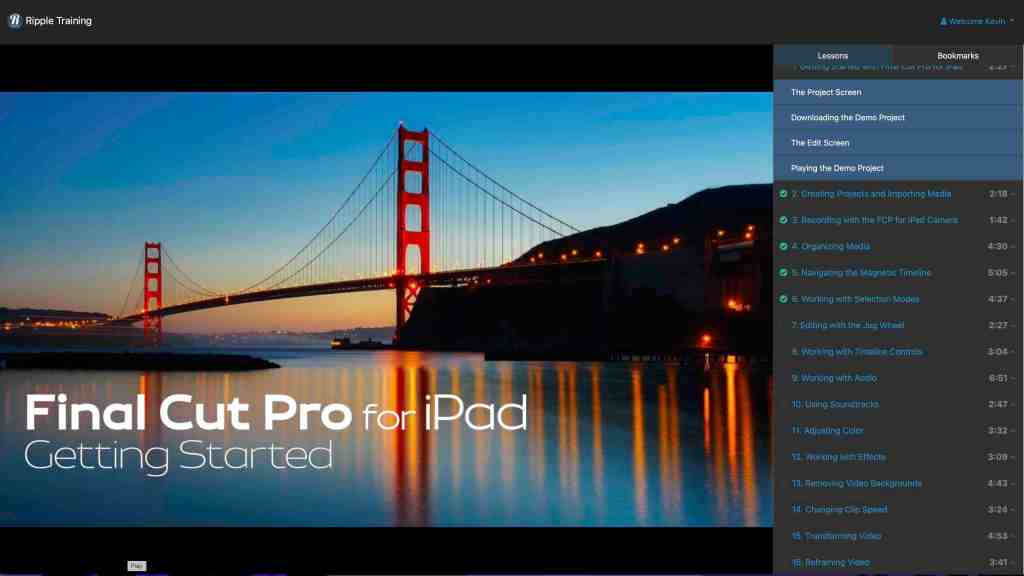
The tutorials teach basic knowledge so they may not be beneficial for someone who has a working knowledge of Final Cut Pro, but for me everything is new and interesting. Being able to watch the videos on a different screen and go through the exercise on the iPad is a good way for me to learn. The tactile experience is helping to engrain things in my memory.
I will say it again, I would recommend the course to anyone wanting to learn how to use the app on the iPad.
That’s where I will leave it for tonight. I hope you have a good night.
Today was another day of revisiting the tutorials.
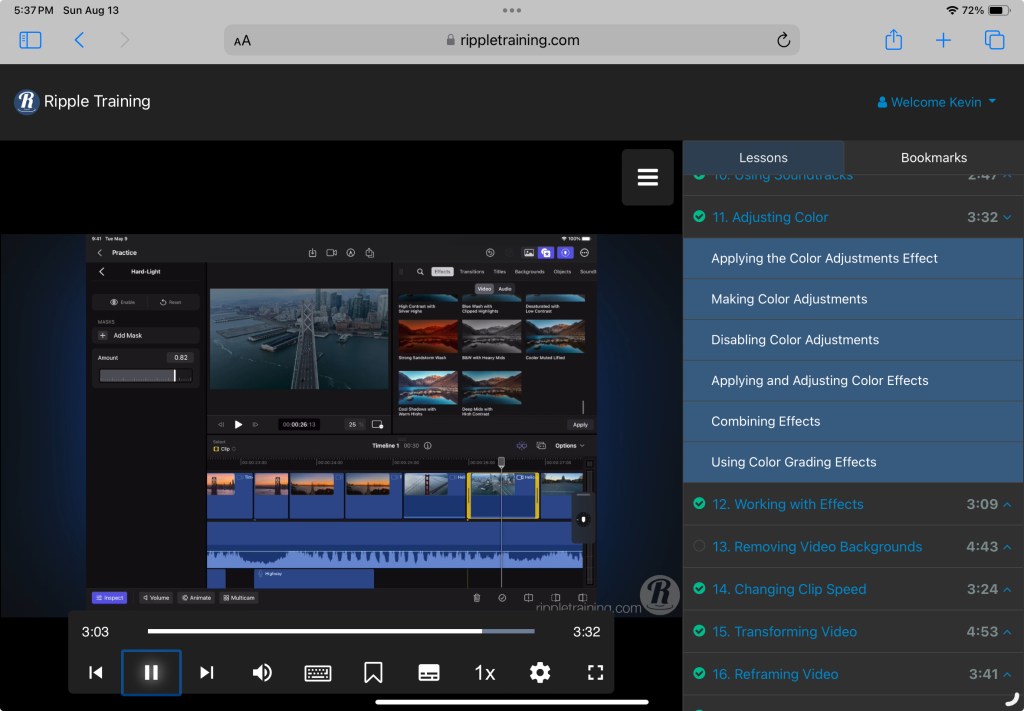
I have been noticing a little washed out look to my videos so I focussed on the tutorials covering color adjustments. It’s very nice being able to adjust the video color levels.
Being able to place a mask over a portion of a video to localize the adjustment is a nice touch. The mask can also be animated to move the mask while the video plays.
Everything seems pretty simple and having the tools to correct this can help save a video.
That is where I am leaving it tonight. I hope that all of you are well.
Benjamin Franklin said “Tell me and I forget, teach me and I may remember, involve me and I learn.” So I decided to involve myself by watching the tutorials again. That is a great selling point. I can go back to them any time I want and find an answer or to refresh my memory. I feel that was $20.00 well spent.
I started with the first tutorial and went through them at my own pace, unhurried. I stopped a few times when I needed and went back over some sections so I could use the tutorial as a guid for what I was playing with on my iPad.
Doing all of this helped me to figure out what I want to do next in Final Cut Pro. I began working on a little story board to figure out what I would like to shoot and to set everything in a timeline. Now I just need to get everything together.
Well that’s where I’m going to leave it for tonight. I hope you are all well.











 My Final Cut Pro